Working plan
- Where are the characters?
- Creation of a stage
- Sketch of the backdrop
- Graphic effects
The stage
 Step by step
- Log in and create a new project m1repte61.
- Click on the word stage.
- We can edit the character:
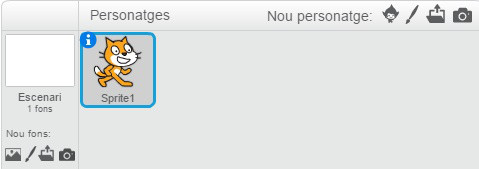
- We can edit the stage:
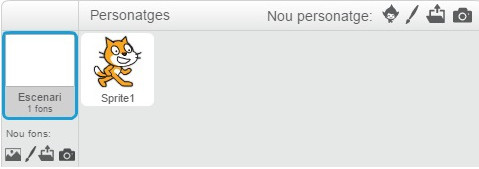
- We can edit the character:
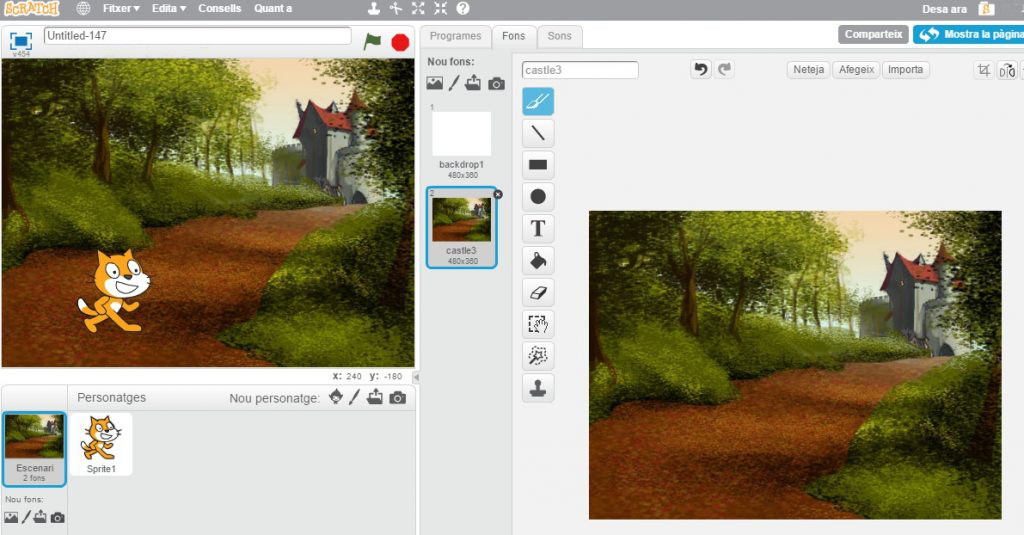
- We can define the backdrop in the stage clicking on backdrop:
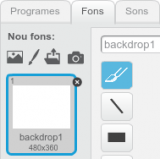
- We can choose the background whenever we want:
- Choose a backdrop of the gallery:
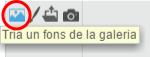
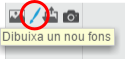
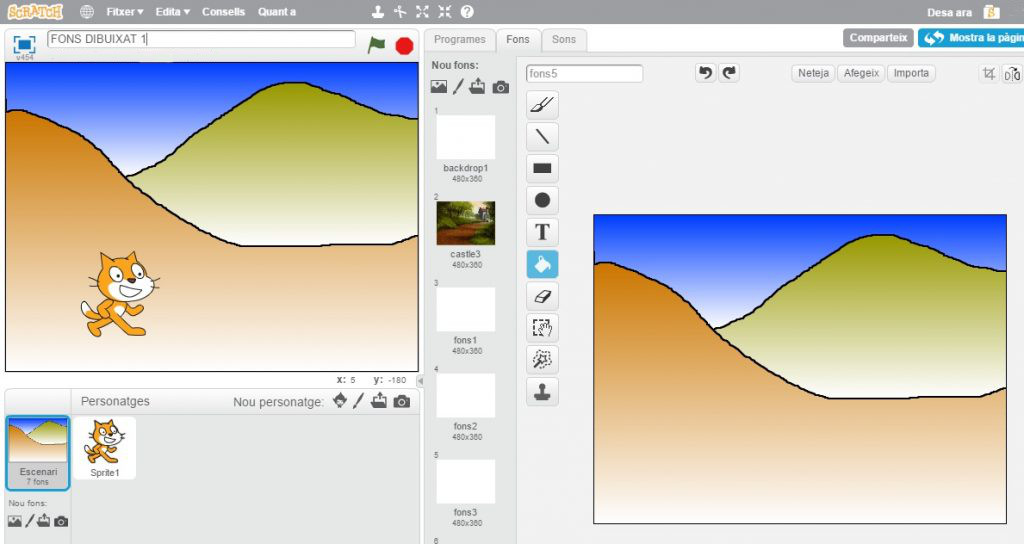
- You can also draw a backdrop:
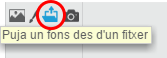
- You can also upload a backdrop from a file:
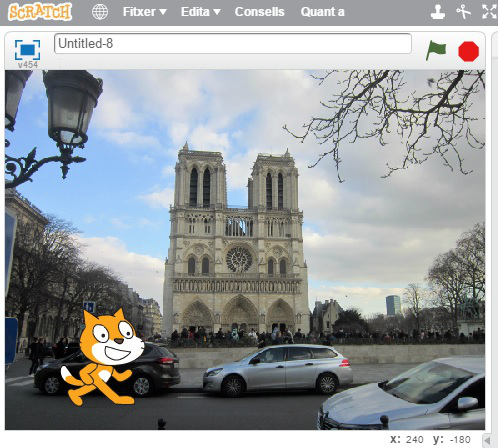
- You can take a picture with the camera of the computer:
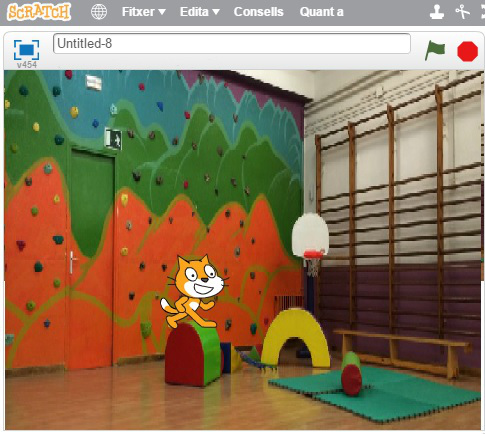
- Choose a backdrop of the gallery:
3. Choose two stages from the Scratch.
- Make the two stages change within a period of 5 seconds from the beginning:
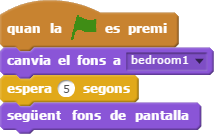


4. Create 4 backdrops for the stage in the project m1repte61. Make them change when we click on a key.
Can we change the stages?
We can edit the stage with the option looks:
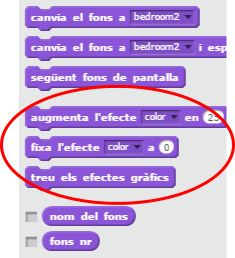
Step by step
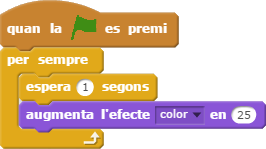
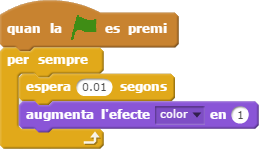
- Create a new project: m1repte62 and change the color effect every second:
These are two examples of this kind of effect:
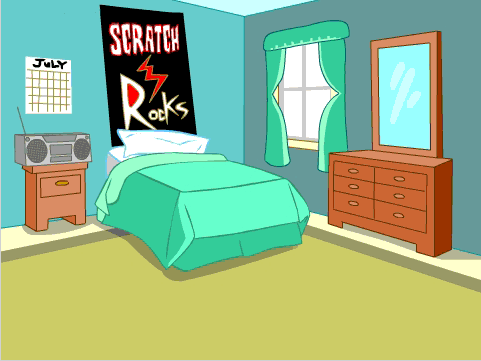
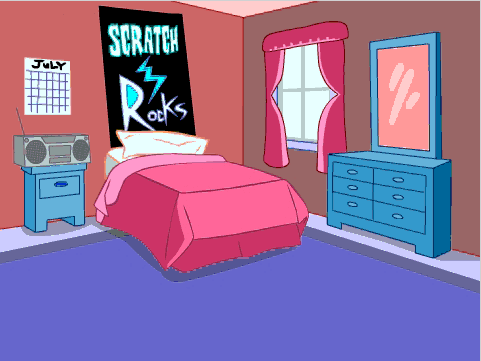
- We can change the timing and the value to get a softer change:
- The value of the graphic effect can be positive or negative:
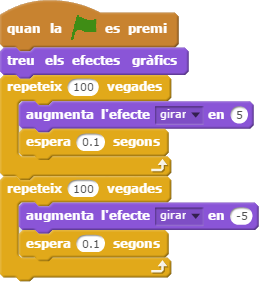

2. Programme a change of backdrop setting and unsetting a graphic effect in the project m1repte62.